Recording with microphone
Redot supports in-game audio recording for Windows, macOS, Linux, Android and iOS.
A simple demo is included in the official demo projects and will be used as support for this tutorial: https://github.com/redot-engine/redot-demo-projects/tree/master/audio/mic_record.
You will need to enable audio input in the Audio > Driver > Enable Input project setting, or you'll just get empty audio files.
The structure of the demo
The demo consists of a single scene. This scene includes two major parts: the GUI and the audio.
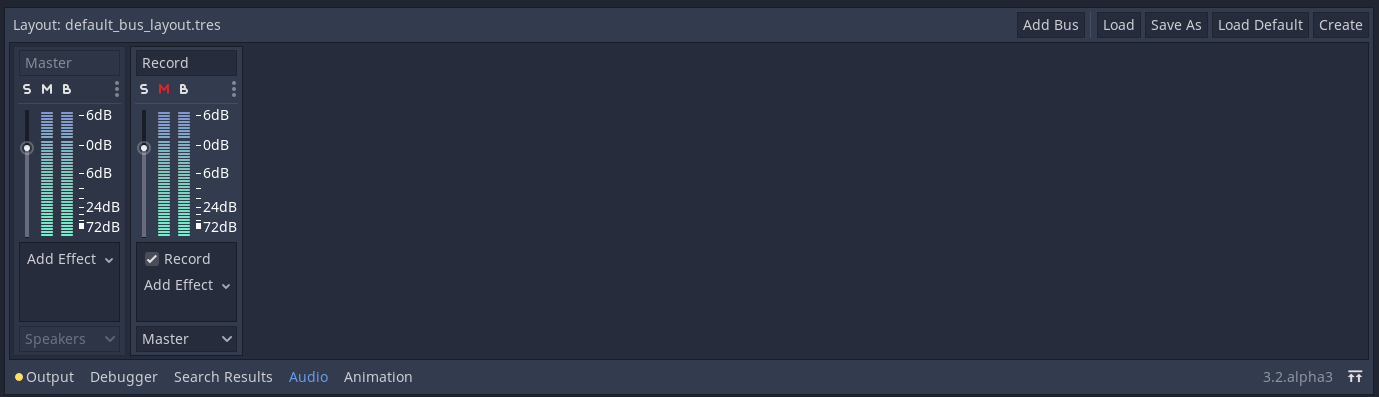
We will focus on the audio part. In this demo, a bus named Record with the
effect Record is created to handle the audio recording.
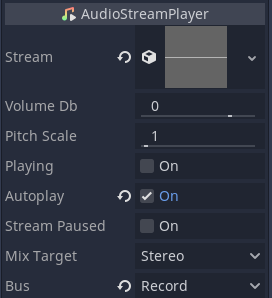
An AudioStreamPlayer named AudioStreamRecord is used for recording.
var effect
var recording

func _ready():
    # We get the index of the "Record" bus.
    var idx = AudioServer.get_bus_index("Record")
    # And use it to retrieve its first effect, which has been defined
    # as an "AudioEffectRecord" resource.
    effect = AudioServer.get_bus_effect(idx, 0)
private AudioEffectRecord _effect;
private AudioStreamSample _recording;

public override void _Ready()
{
    // We get the index of the "Record" bus.
    int idx = AudioServer.GetBusIndex("Record");
    // And use it to retrieve its first effect, which has been defined
    // as an "AudioEffectRecord" resource.
    _effect = (AudioEffectRecord)AudioServer.GetBusEffect(idx, 0);
}
The audio recording is handled by the class AudioEffectRecord resource which has three methods: get recording(), is recording active(), and set recording active().
func _on_record_button_pressed():
    if effect.is_recording_active():
        recording = effect.get_recording()
        $PlayButton.disabled = false
        $SaveButton.disabled = false
        effect.set_recording_active(false)
        $RecordButton.text = "Record"
        $Status.text = ""
    else:
        $PlayButton.disabled = true
        $SaveButton.disabled = true
        effect.set_recording_active(true)
        $RecordButton.text = "Stop"
        $Status.text = "Recording..."
private void OnRecordButtonPressed()
{
    if (_effect.IsRecordingActive())
    {
        _recording = _effect.GetRecording();
        GetNode<Button>("PlayButton").Disabled = false;
        GetNode<Button>("SaveButton").Disabled = false;
        _effect.SetRecordingActive(false);
        GetNode<Button>("RecordButton").Text = "Record";
        GetNode<Label>("Status").Text = "";
    }
    else
    {
        GetNode<Button>("PlayButton").Disabled = true;
        GetNode<Button>("SaveButton").Disabled = true;
        _effect.SetRecordingActive(true);
        GetNode<Button>("RecordButton").Text = "Stop";
        GetNode<Label>("Status").Text = "Recording...";
    }
}
At the start of the demo, the recording effect is not active. When the user
presses the RecordButton, the effect is enabled with
set_recording_active(true).
On the next button press, as effect.is_recording_active() is true,
the recorded stream can be stored into the recording variable by calling
effect.get_recording().
func _on_play_button_pressed():
    print(recording)
    print(recording.format)
    print(recording.mix_rate)
    print(recording.stereo)
    var data = recording.get_data()
    print(data.size())
    $AudioStreamPlayer.stream = recording
    $AudioStreamPlayer.play()
private void OnPlayButtonPressed()
{
    GD.Print(_recording);
    GD.Print(_recording.Format);
    GD.Print(_recording.MixRate);
    GD.Print(_recording.Stereo);
    byte[] data = _recording.Data;
    GD.Print(data.Length);
    var audioStreamPlayer = GetNode<AudioStreamPlayer>("AudioStreamPlayer");
    audioStreamPlayer.Stream = _recording;
    audioStreamPlayer.Play();
}
To playback the recording, you assign the recording as the stream of the
AudioStreamPlayer and call play().
func _on_save_button_pressed():
    var save_path = $SaveButton/Filename.text
    recording.save_to_wav(save_path)
    $Status.text = "Saved WAV file to: %s\n(%s)" % [save_path, ProjectSettings.globalize_path(save_path)]
private void OnSaveButtonPressed()
{
    string savePath = GetNode<LineEdit>("SaveButton/Filename").Text;
    _recording.SaveToWav(savePath);
    GetNode<Label>("Status").Text = string.Format("Saved WAV file to: {0}\n({1})", savePath, ProjectSettings.GlobalizePath(savePath));
}
To save the recording, you call save_to_wav() with the path to a file.
In this demo, the path is defined by the user via a LineEdit input box.